Azure DevOps and Azure DevOps Server
Authentication
Personal Access Token (PAT)
First, create a Personal Access Token for the Renovate account. Let Renovate use your PAT by doing one of the following:
- Set your PAT as a
tokenin yourconfig.jsfile - Set your PAT as an environment variable
RENOVATE_TOKEN - Set your PAT when you run Renovate in the CLI with
--token=
Permissions for your PAT should be at minimum:
| Scope | Permission | Description |
|---|---|---|
Code |
Read & Write | Required |
Work Items |
Read & write | Needed for link to work item and dependecy dashboards |
Remember to set platform=azure somewhere in your Renovate config file.
Microsoft Entra ID Bearer Token (OAuth)
Renovate also supports authenticating to Azure DevOps Services using Microsoft Entra ID (formerly Azure AD) Bearer tokens. This works with service principals, managed identities, and user-delegated tokens.
Renovate automatically detects whether a token is a JWT (Bearer token) or a PAT based on its format.
No additional configuration is needed. Just set the token field to your Entra ID access token:
// config.js
module.exports = {
  platform: 'azure',
  endpoint: 'https://dev.azure.com/your-organization',
  token: '<your-entra-access-token>',
};
Or via environment variables:
export RENOVATE_PLATFORM=azure
export RENOVATE_ENDPOINT=https://dev.azure.com/your-organization
export RENOVATE_TOKEN=<your-entra-access-token>
Renovate inspects the token structure to decide the authentication method:
- If the token is a valid JWT (three base64url-encoded segments with a JSON header containing
typoralg), it is treated as a Bearer token (Microsoft Entra ID). - Otherwise, the token is treated as a Personal Access Token (PAT).
Obtaining a Bearer token
For service principals:
az login --service-principal -u <client-id> -p <client-secret> --tenant <tenant-id>
az account get-access-token --resource 499b84ac-1321-427f-aa17-267ca6975798 --query accessToken -o tsv
For managed identities (Azure-hosted Renovate):
az login --identity
az account get-access-token --resource 499b84ac-1321-427f-aa17-267ca6975798 --query accessToken -o tsv
Requirements for service principals / managed identities
- The identity must be added to the Azure DevOps organization (Organization Settings → Users).
- The identity must have at least a Basic license.
- Grant permissions: Code (Read & Write) at the project level.
Limitations
- Token lifetime: Entra tokens expire after ~1 hour. Refresh the token before each Renovate run.
- Azure DevOps Services only: Bearer tokens are not supported on Azure DevOps Server (on-premises). Use PATs for on-premises.
- Conditional Access: Your organization's Conditional Access policies may block service principal tokens.
Running Renovate in Azure Pipelines
Setting up a new pipeline
Create a brand new pipeline within Azure DevOps, and select your source:
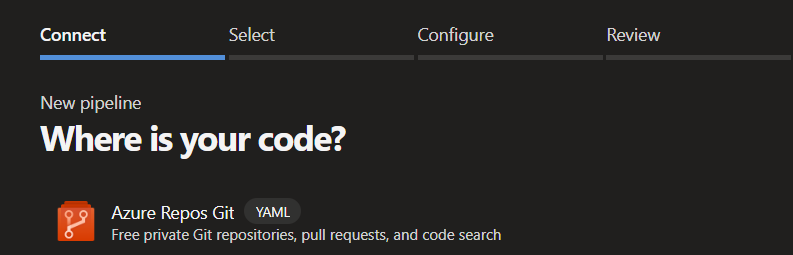
Then select your repository.
Within Configure your pipeline select: Starter pipeline

Replace all content in the starter pipeline with:
schedules:
  - cron: '0 3 * * *'
    displayName: 'Every day at 3am (UTC)'
    branches:
      include: [main]
    always: true

trigger: none

pool:
  vmImage: ubuntu-latest

steps:
  - task: npmAuthenticate@0
    inputs:
      workingFile: .npmrc

  - bash: |
      add-apt-repository ppa:git-core/ppa
      apt update && apt install git -y
    displayName: 'Install latest version of Git'

  - bash: |
      git config --global user.email 'bot@renovateapp.com'
      git config --global user.name 'Renovate'
      npx --userconfig .npmrc renovate
    env:
      RENOVATE_PLATFORM: azure
      RENOVATE_ENDPOINT: $(System.CollectionUri)
      RENOVATE_CONFIG_FILE: $(Build.SourcesDirectory)/renovate_bot_config.json
      RENOVATE_TOKEN: $(System.AccessToken)
      LOG_LEVEL: debug
Create a .npmrc file
Create a .npmrc file in your repository:
registry=https://pkgs.dev.azure.com/YOUR-ORG/_packaging/YOUR-FEED/npm/registry/
always-auth=true
For the registry key, replace YOUR-ORG with your Azure DevOps organization and YOUR-FEED with your Azure Artifacts feed.
Create a config.js file
Create a config.js file in your repository:
module.exports = {
  hostRules: [
    {
      hostType: 'npm',
      matchHost: 'pkgs.dev.azure.com',
      username: 'apikey',
      password: process.env.RENOVATE_TOKEN,
    },
  ],
  repositories: ['YOUR-PROJECT/YOUR-REPO'],
};
For the repositories key, replace YOUR-PROJECT/YOUR-REPO with your Azure DevOps project and repository.
Using Azure DevOps internal API for pipeline tasks versions
Info
Renovate now uses the set of APIs that Azure provides to query the azure-pipelines tasks versions directly from the instance. Read pull request 32966 and discussion 24820 for more background information on this change.
To let Renovate use the Azure DevOps internal API, you must set these variables in your config:
platform=azureendpoint=$(System.CollectionUri), this is an Azure predefined variablehostRules.hostType=azure-pipelines-tasks
{
  "platform": "azure",
  "endpoint": "https://dev.azure.com/ORG_NAME",
  "azure-pipelines": {
    "enabled": true
  },
  "repositories": ["PROJECT_NAME/REPO_NAME"],
  "prHourlyLimit": 0,
  "baseBranchPatterns": ["main"],
  "hostRules": [
    {
      "matchHost": "https://dev.azure.com/",
      "hostType": "azure-pipelines-tasks"
    }
  ],
  "packageRules": [
    {
      "matchDatasources": ["azure-pipelines-tasks"],
      "extractVersion": "^(?<version>\\d+)"
    }
  ]
}
Yarn users
To do a successful yarn install you need to match the URL of the registry fully.
Use the matchHost config option to specify the full path to the registry.
module.exports = {
  platform: 'azure',
  hostRules: [
    {
      matchHost:
        'https://myorg.pkgs.visualstudio.com/_packaging/myorg/npm/registry/',
      token: process.env.RENOVATE_TOKEN,
      hostType: 'npm',
    },
    {
      matchHost: 'github.com',
      token: process.env.RENOVATE_GITHUB_COM_TOKEN,
    },
  ],
  repositories: ['YOUR-PROJECT/YOUR-REPO'],
};
Put this in your repository's .npmrc file:
registry=https://myorg.pkgs.visualstudio.com/_packaging/myorg/npm/registry/
always-auth=true
Add renovate.json file
Additionally, you can create a renovate.json file (which holds the Renovate configuration) in the root of the repository you want to update.
Read more about the Renovate configuration options
Using a single pipeline to update multiple repositories
If you want to use a single Renovate pipeline to update multiple repositories you must take the following steps.
Add the names of the repositories to config.js.
Make sure that the "Project Collection Build Service (YOUR-PROJECT)" user has the following permissions on the repositories:
- Contribute
- Contribute to pull requests
- Create branch
- Read
The user must have the following permission at Project-level:
- View project-level information
Linking a work item to the Pull Requests
If you want Renovate to automatically link an existing work item to the Pull Requests, you can set the azureWorkItemId configuration.
Make sure the user has the following permissions on the work item's area path:
- Edit work items in this node
- View work items in this node
If the user does not have these permissions, Renovate still creates a PR but it won't have a link to the work item.
Dependency Dashboard work item state
On Azure DevOps, Renovate stores the Dependency Dashboard (and any other issues) as a work item of type Issue.
Renovate resolves the correct open and closed state names from the process for the project automatically, so it works across the different processes (for example To Do/Done on Basic, New/Active/Closed on Agile, and custom inherited processes).
When creating the work item, Renovate does not set a state, so Azure DevOps applies the default initial state of the work item type.
If the states cannot be read (for example on older Azure DevOps Server versions), Renovate falls back to the New and Closed state names.
The work item description is rendered as Markdown only on Azure DevOps Services (cloud), which is the only product that supports the work item Markdown format field. On Azure DevOps Server (on-premises) Renovate omits that field, so the description is stored as plain text.
Adding tags to Pull Requests
Tags can be added to Pull Requests using the labels or addLabels configurations.
If the tag does not exist in the DevOps project, it will be created automatically during creation of the Pull Request as long as the user has the permissions at Project-level:
- Create tag definition
Otherwise, when a tag does not exist and the user does not have permission to create it, Renovate will output an error during creation of the Pull Request.